About the Finance Intelligence Agent—Early Adopter
Related information
 Related topics
The Finance Intelligence Agent is your Sage Ai-powered partner that helps you find answers about your financial data and drive better decision-making. Using Sage Copilot, you can ask questions, get insights, and explore your information all by using natural language.
This feature is in the Early Adopter program and may not be available yet in your environment. When it's available, you'll see a notification when you log in to Sage Intacct indicating the Finance Intelligence Agent is ready for your administrator to set up.
| Subscription |
The Finance Intelligence Agent is currently in our Early Adopter program. We're giving all customers the opportunity to use the agent through a phased rollout. When your company is enabled, your Sage Intacct Admin can turn on the agent. |
|---|---|
| Regional availability |
Australia Canada Singapore South Africa United States United Kingdom |
| Language | US English only |
| User type |
All user types |
| Permissions |
To use the Finance Intelligence Agent: Finance Intelligence Agent—Run You must also have the appropriate permissions to the data objects you're asking about. |
Watch: How to use the Finance Intelligence Agent (2:14)
What can the Finance Intelligence Agent do?
The Finance Intelligence Agent is an AI-powered service built into Sage Intacct to help you work smarter and faster. It uses your financial data to provide relevant assistance.
The Finance Intelligence Agent can:
- Analyze and visualize your financial data—showing you trends and insights.
- Summarize and answer questions—providing you with clear answers.
- Answer your how-to questions with smart, in-product guidance from Search help.
Use the Finance Intelligence Agent
You interact with the Finance Intelligence Agent by using Sage Copilot. You start a chat with it by using prompts. A prompt is a question or command that tells Sage Copilot what you want it to do for you.
For example, here are some basic prompts relating to financial data:
- When was invoice INV-123 paid?
- List my vendors with overdue bills.
- What were the 3 largest bills paid last month?
To use Sage Copilot with the Finance Intelligence Agent:
- On any page in Sage Intacct, select the Copilot icon in the top title bar.
- If you're only subscribed to one Sage Ai Agent, the Sage Copilot panel opens.
- If you're subscribed to multiple Sage Ai agents, you'll see a dropdown menu. Select Search. Then the Sage Copilot panel opens.
- Enter a prompt using natural language in the Ask Copilot a question field located at the bottom of the panel.
Sage Copilot starts processing the prompt and shows you status while it's processing. When it finishes processing, it displays the response.
Don't see the Copilot icon? Verify with your Intacct administrator that you have the Finance Intelligence Agent - Run permission. If they just assigned that permission to you while you are logged in to Intacct, make sure you log out and log back in again to activate the permission in your Intacct session.
View an analysis of the response
You can view additional analysis about responses concerning your financial data. This analysis might include a supporting table, chart, and insight summary. It also includes a “How Copilot worked this out” panel that explains how the answer was derived.
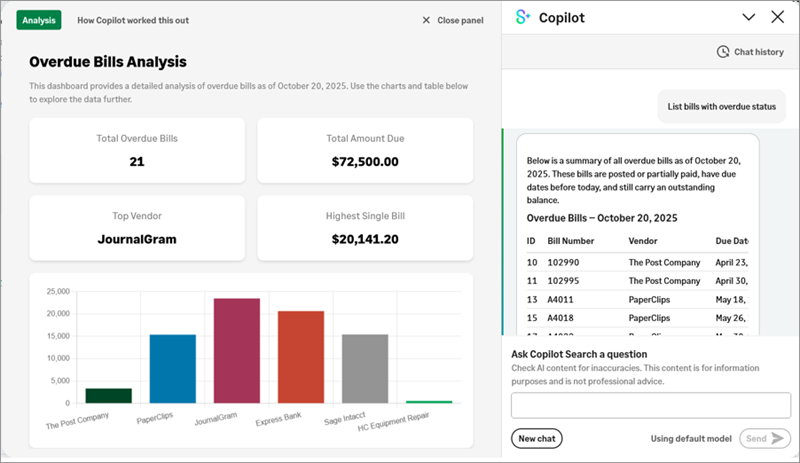
To view the analysis:
- In the Copilot panel, scroll to the bottom of a response and select View analysis.
A panel expands to the left of the Copilot panel and displays visual insights in the Analysis tab.
- Select the How Copilot worked this out tab.
The tab displays the steps the Finance Intelligence Agent took to determine the results.
-
Select Close panel to close the expanded panel.
Always verify the totals and calculations provided by Copilot before taking action based on the information.
Export and share the analysis
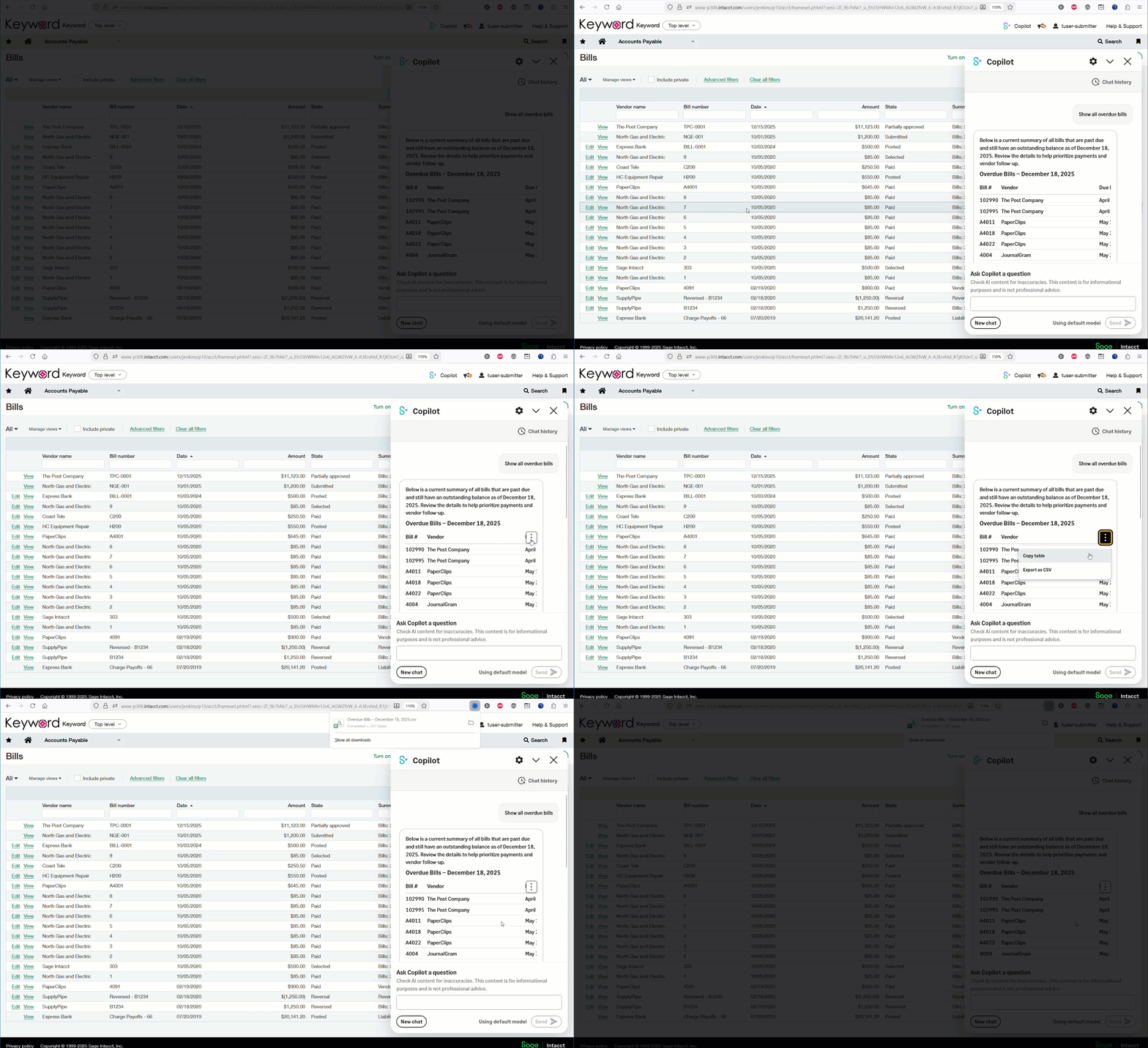
You can export a list or table in a Sage Copilot response to a CSV file for further analysis or sharing.
- In the Sage Copilot panel, hover anywhere in the table in a response.
A vertical ellipsis button appears.
- Select the vertical ellipsis button.
- Select Export as CSV.
The table is exported to a CSV file and is available in your browser's download folder.
Prompt tips
You can ask Sage Copilot to analyze data, spot trends, and answer questions—without building reports or writing queries.
- Start with a clear goal. What do you want Sage Copilot to produce or explain?
- Be specific: include date ranges, values, transaction IDs, and so on.
- Try using Intacct terminology, like "Show me
- Use follow-up questions to refine results quickly.
- If you're not satisfied with the results, try rephrasing your prompt or providing more context.
Learn how to write effective prompts.
Looking for more prompt ideas? Check out the Finance Intelligence Agent prompt library for more examples of what you can ask Sage Copilot to do for you.
